Once upon a time i start dreaming about my own skype bot. I could set up message forwarding from any sources, going right into my skypeid. I will describe all my steps to make my dream came true :)
In this article i will run skype-client under linux virtual container. OpenVZ, 32bit, Debian wheezy.
Here we go.
# aptitude install x11vnc xfvb runit

# wget http://www.skype.com/go/getskype-linux-deb-32

# dpkg -i skype.deb

# aptitude install

The following actions will resolve these dependencies:

     Remove the following packages:
1)     skype

Accept this solution? [Y/n/q/?] n
The following actions will resolve these dependencies:

      Install the following packages:
On this step all needed packages will be installed. Next stop: creating runit-scripts for our daemons.
Runit-script for virtual X-server:
# mkdir -p /etc/sv/Xvfb/
# $EDITOR /etc/sv/Xvfb/run
with following contents:
#!/bin/bash


exec 2>&1
exec Xvfb
Make run script executable and activate runit-job:
# chmod a+x /etc/sv/Xvfb/run

# ln -s /etc/sv/Xvfb/ /etc/service/Xvfb

# sv status Xvfb
run: Xvfb: (pid 20111) 5s
Allright, our virtual X-Server is running for 5 seconds, all goes well.
We need to prepare everything to run our skype-client instance:
# adduser skype

# aptitude install git python-setuptools python-dbus python-gobject dbus-x11

# git clone https://github.com/awahlig/skype4py.git

# cd skype4py

# python setup.py install
If there's no errors, run VNC server:
# export DISPLAY=":0"

# x11vnc &

# su - skype
Create skype helper scripts.
sendim.py
# -*- coding: utf-8 -*-
import Skype4Py
import sys
# Create an instance of the Skype class.
skype = Skype4Py.Skype()
# Connect the Skype object to the Skype client.
skype.Attach()
user = sys.argv[1]
msg = ' '.join(sys.argv[2:])
message = skype.SendMessage(user, msg)
print sys.argv[1]
print sys.argv[2:]
sendim.sh
#!/bin/bash

export DISPLAY=:0
export VERSIONER_PYTHON_PREFER_32_BIT=yes
echo "$@" >> /tmp/sendimsh.log

python ~skype/sendim.py "$@"
Make file executable and run skype:
# chmod a+x sendim.sh

# export DISPLAY=“:0”

# skype
On this step you will need to have VNC-client. Run it and connect to your VNC server.
And you have to register skypeid for your bot.
Head to
https://login.skype.com/account/signup-form, and register new account. Then switch to vnc client window and accept skype terms and conditions for skype client. Enter your skypeid and pass and don't forget to set check on remember password.
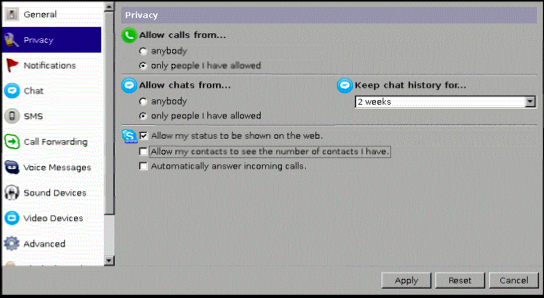
Open new terminal window and check if everything is working. You'll see new windows asking for permissions to control skype. Accept it, don't forget to set check in checkbox.
# su - skype

# sendim.sh skypename test

Now you need addition helper scripts for making authorization requests.
addcontact.py
# -*- coding: utf-8 -*-
import Skype4Py
import sys
# Create an instance of the Skype class.
skype = Skype4Py.Skype()
# Connect the Skype object to the Skype client.
skype.Attach()
#user = sys.argv[1]
#msg = ' '.join(sys.argv[2:])
#message = skype.SendMessage(user, msg)
print sys.argv[1]
print sys.argv[2:]

client = Skype4Py.client.Client(skype)
client.OpenAddContactDialog(sys.argv[1])
client.ButtonReleased(1)
addcontact.sh
#!/bin/bash

export DISPLAY=:0
export VERSIONER_PYTHON_PREFER_32_BIT=yes
echo "$@" >> /tmp/addcontact.log

python ~skype/addcontact.py "$1"
sleep 3
WID=$(xdotool search "Say hello to $1")
xdotool windowactivate $WID
xdotool key "0x020"
At this step you will need addition package xdotool because i didn't managed how to close outbound contact request window without dirty hacks. And attitional package - fluxbox window manager, because xdotool doesn't work without WM:
# aptitude install xdotool fluxbox
Switch to root user and create runit-job for fluxbox Don't forget to make script executable.
# mkdir /etc/sv/fluxbox

# $EDITOR /etc/sv/fluxbox/run
With following contents:
#!/bin/bash

TIME="Finished. Process took %E. %P CPU was eaten. %MK memory was used." # time stuff

name=`basename $(dirname $(pwd)/fake)` # ugly hack
workingdir="/home/skype/"
command="su - skype -c /usr/bin/fluxbox -- --replace"
export DISPLAY=":0"
exec 2>&1

echo starting $name...
export TIME
set -x
cd $workingdir
exec chpst -v time $command
# chmod +x /etc/sv/fluxbox/run

# ln -s /etc/sv/fluxbox/ /etc/service/fluxbox
After issuing last command you'll notice WM appearance in vnc window.
Login under skype user and try to send auth request to your skypeid. In this example your skypeid will be testname:
# ./addcontact.sh testname
In your vnc-window you will notice outbound contact request windows appearance, then it will close.
Switch to your skype client on your pc/mac and authorize inbound request, then switch back to remote console and send test message:
# ./sendim.sh testname "Hello Master"
You should receive message from your bot.
Switch to VNC-window and quit from skype client. Final steps remaining - add skype client to autorun. And make sure your bot survives reboot. I left this on you, you should manage.
Script for runit-job:
#!/bin/bash

TIME="Finished. Process took %E. %P CPU was eaten. %MK memory was used." # time stuff

name=`basename $(dirname $(pwd)/fake)` # ugly hack
workingdir="/home/skype/"
command="su - skype -c /usr/bin/skype"
export DISPLAY=":0"
exec 2>&1

echo starting $name...
export TIME
set -x
cd $workingdir
exec chpst -v time $command

